.png)
2026-09-23 Mobile Application Release Notes
1. Non-Billable Scheduling
The OnTarget Mobile Application now supports both billable and non-billable scheduled events within a single Schedule page, providing users with a more comprehensive mobile scheduling experience. Users can view both schedule types through a unified schedule list, making it easier to manage daily scheduling activities from one location.
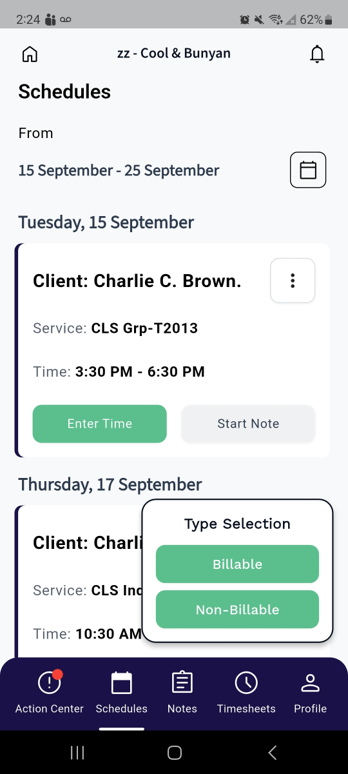
Users with the appropriate Scheduling permissions can create, edit, and delete non-billable scheduled events directly from the mobile application. When selecting Create Schedule, users are now presented with the option to create either a Billable or Non-Billable schedule, allowing scheduling activities to be completed without needing to access the OnTarget desktop application.
This enhancement extends mobile scheduling capabilities and provides greater flexibility for managing both billable and non-billable scheduling activities while maintaining existing OnTarget scheduling permissions and security controls.
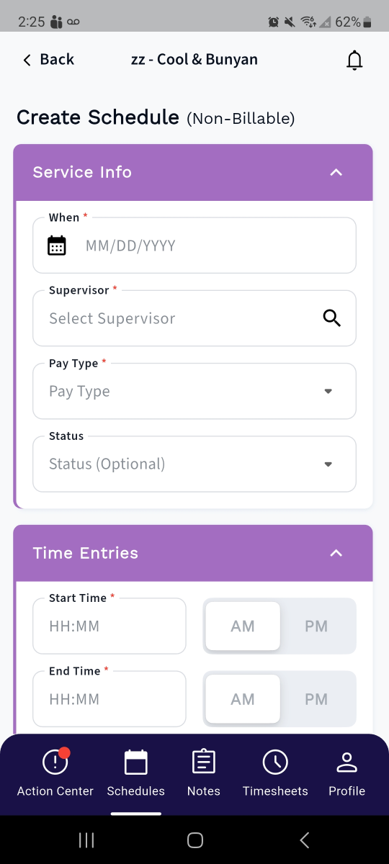
When creating a non-billable scheduled event, users are guided through a dedicated schedule entry page designed specifically for non-billable scheduling activities. The page allows users to select the event date, assign a supervisor, choose an available non-billable pay type, select a status, enter start and end times, and provide comments as needed. Additional scheduling options, including Indirect, Out of Community, Hold Bill, and Hold Pay, are also available to support existing scheduling workflows.
The non-billable scheduling experience leverages familiar mobile scheduling functionality while ensuring all required information is captured before the scheduled event can be saved. Users can quickly locate supervisors through a searchable lookup and select from configured pay types and statuses available to their account.
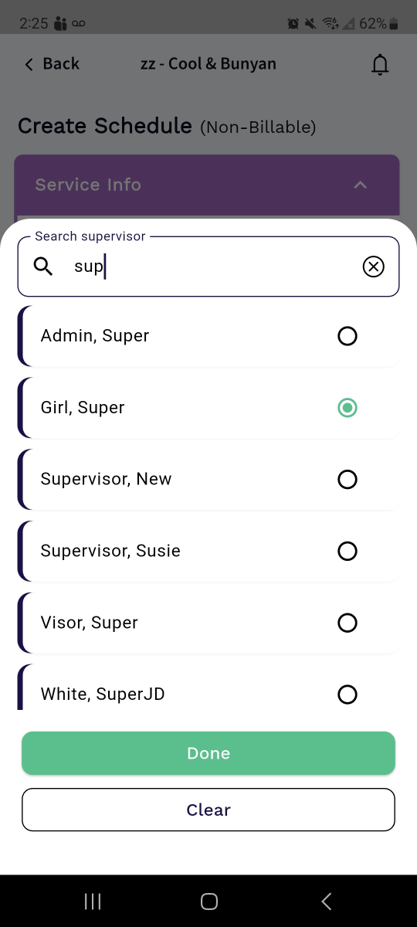
Users can quickly locate and assign a supervisor when creating or editing a non-billable scheduled event. The Supervisor field provides a dynamic search experience that displays matching supervisors as characters are entered, allowing users to efficiently refine and locate the appropriate supervisor record.
Once a supervisor is located, users can select the desired supervisor from the list and confirm their selection. This streamlined lookup experience is designed to simplify supervisor assignment while supporting organizations with large numbers of available supervisors.
After selecting a supervisor, users can choose from a list of available non-billable Pay Types assigned to their account. The Pay Type field presents eligible non-billable pay types in a drop-down list, allowing users to quickly select the appropriate value for the scheduled event. This ensures non-billable schedules are categorized correctly and aligned with existing organizational pay type configurations.
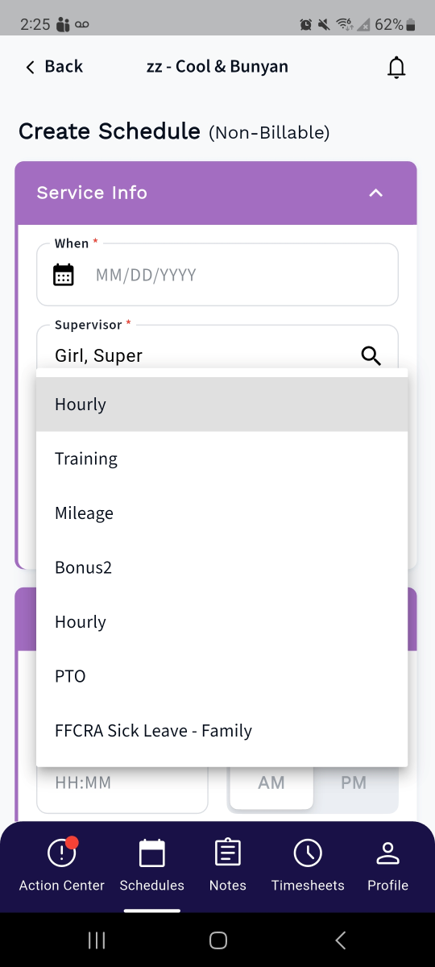
Please Note: The non-billable Pay Types available for selection are based on the Pay Types configured for the Employee record associated with the logged-in user. Only assigned non-billable Pay Types will be displayed within the Pay Type selection list.
Completing the remaining required fields enables the Create Schedule button. Once selected, the non-billable scheduled event is saved and added to the user's schedule, where it can be viewed and managed based on the user's assigned scheduling permissions.
Please Note: All required fields must be completed before the Create Schedule button becomes available. Validations are performed to help ensure scheduling information is entered accurately before the non-billable scheduled event is created.
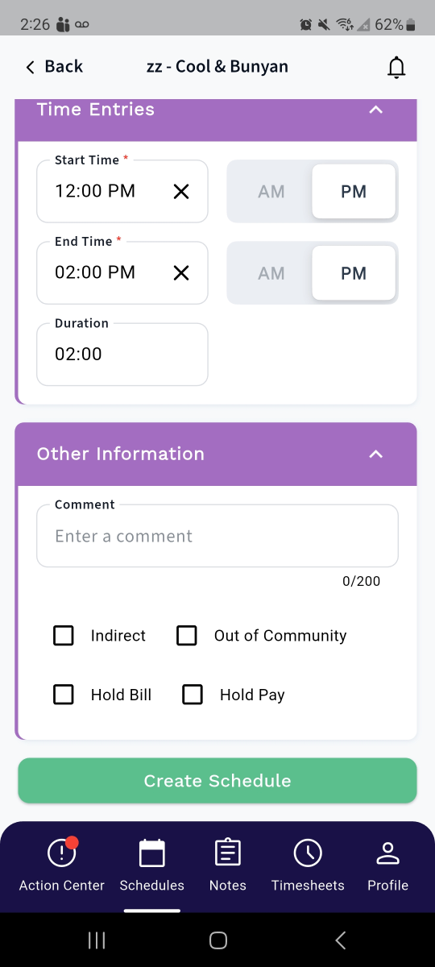
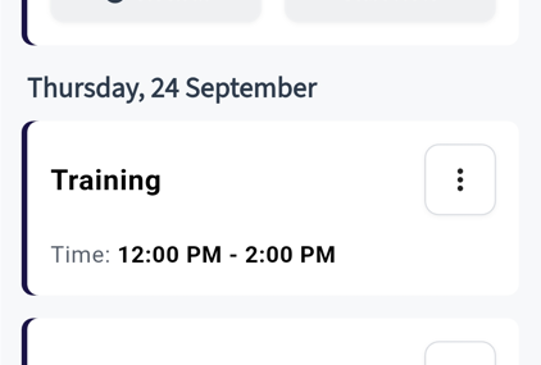
Once a non-billable scheduled event is created, it is automatically added to the Schedule page and displayed within the selected date range alongside other scheduled events. This provides users with a consolidated view of both billable and non-billable scheduling activities from a single location.
Non-billable schedule cards display key event information for reference and visibility. Users with the appropriate scheduling permissions may open a non-billable scheduled event to review, edit, or delete the event as needed.
Please Note: At this time, non-billable schedule cards are intended for schedule management purposes and do not support additional actions or workflows beyond viewing, editing, and deleting the scheduled event.
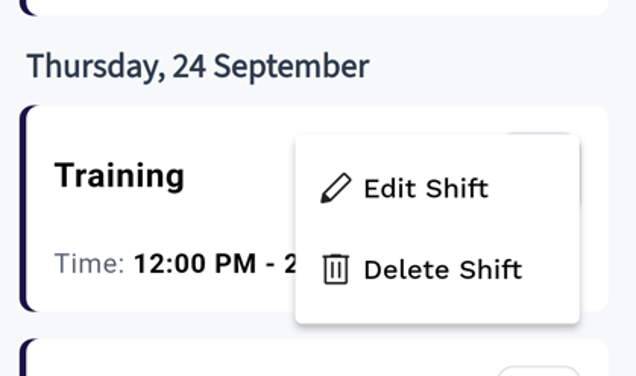
The ellipsis menu available on non-billable schedule cards provides options based on the user's assigned Scheduling permissions.
Users with Read Only Scheduling permissions can select View to review the details of a non-billable scheduled event. Schedule information is displayed in a read-only format, and changes cannot be made to the event.
Users with Full Access Scheduling permissions can select Edit to update schedule details or Delete to remove the non-billable scheduled event. This role-based experience ensures users have access to scheduling actions that align with their assigned security permissions.
Please Note: Access to view, edit, and delete non-billable scheduled events is controlled by existing OnTarget Scheduling role security settings. Only users with the appropriate permissions will have access to these actions.
2. Mobile Application – Treatment Plan DMS Download
The OnTarget Mobile Application has been enhanced to allow users to download and view documents associated with a client's active Treatment Plan. This functionality provides convenient access to Treatment Plan documentation directly from the mobile application, reducing the need to access the OnTarget desktop application when reviewing client records.
Access to Treatment Plan documents is governed by existing OnTarget role-based security settings. Users must be assigned the appropriate desktop security permissions to access and view Treatment Plan documentation within the mobile application.
Please Note: Treatment Plan document access requires one or both of the following desktop security permissions:
- Configure > Security > Configure Roles > Desktop Security > Clients > Treatment Plan = True
- Configure > Security > Configure Roles > Desktop Security > Employees > Roster > View Plan = True
Depending on assigned role permissions, users may access client profiles and Treatment Plan documents through one of the following workflows:
Assigned Clients Access
- Available when Show Only Assigned Clients = True
- Navigate to Profile > Assigned Clients
- Select an assigned client to open the client profile
Client Search Access
- Available when Show Only Assigned Clients = False
- Navigate to Home > Client Search
- Search for and select a client from the search results
Please Note: Users who are not restricted to assigned clients may be able to access client profiles through both workflows.
From the client profile, users can select View Plan to access a list of documents associated with the client's active Treatment Plan. Available documents are presented in a selectable list and can be downloaded or viewed directly from the mobile application based on the user's security permissions.
Select the Assigned Clients tab to view clients assigned to your account. Users can then select the arrow icon displayed next to a client record to open the client's profile and access available client information.
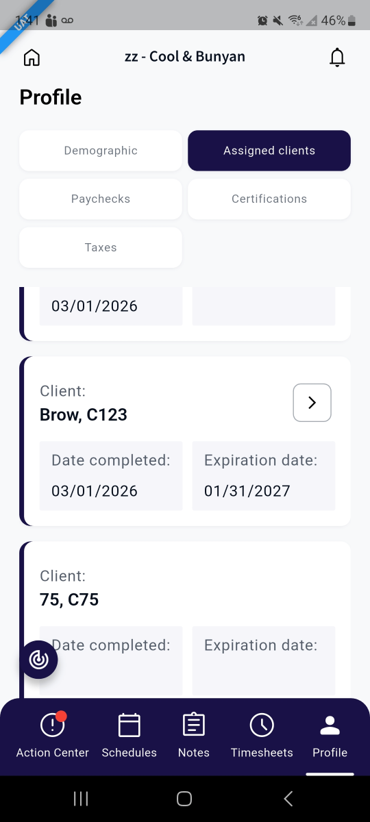
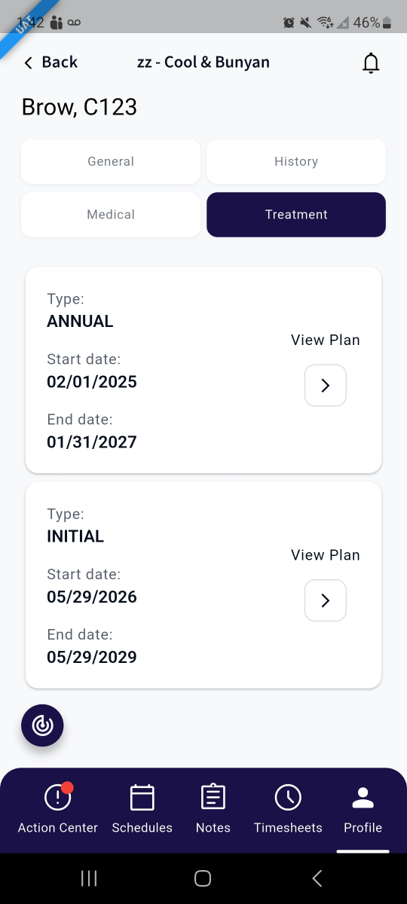
Within the client profile, select the Treatment tab to view the client's active Treatment Plans. Each active Treatment Plan includes a View Plan option that allows users to access associated documentation.
Selecting the View Plan arrow opens a dedicated document page displaying DMS documents associated with the selected active Treatment Plan. The document list includes available Treatment Plan documentation and supporting records that the user is authorized to access.
Please Note: Only documents associated with the client's active Treatment Plan are displayed. Access to Treatment Plan documents is governed by existing OnTarget role-based security permissions.
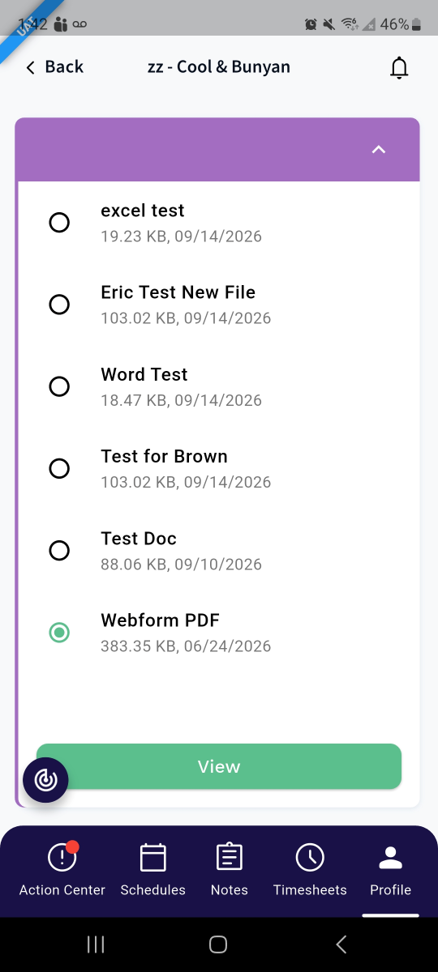
Within the document list, users can select a single Treatment Plan document for viewing. Once a document is selected, the View button becomes available and can be used to open the selected document.
Please Note: Only one document can be selected and viewed at a time. The View button remains unavailable until a document has been selected from the list.
Selecting View initiates the document retrieval process and opens the selected Treatment Plan document for viewing within the mobile application.
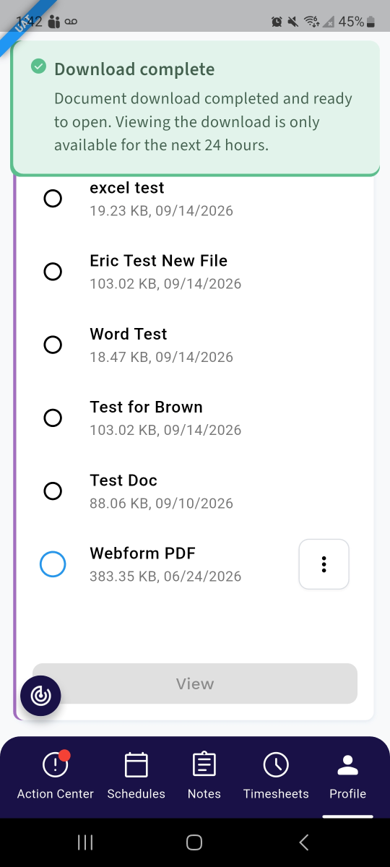
When a document download is initiated, a download progress indicator is displayed to provide visibility into the status of the download. The indicator gradually fills with blue as the document is retrieved and processed.
Once the download is complete, the progress indicator displays a fully outlined blue circle, confirming that the document is available for viewing. A download success notification is also displayed at the top of the screen to notify the user that the document was downloaded successfully.
Please Note: The time required to complete the download may vary based on the size and type of the selected document. Users may continue to monitor download progress using the on-screen download indicator until the download is complete.
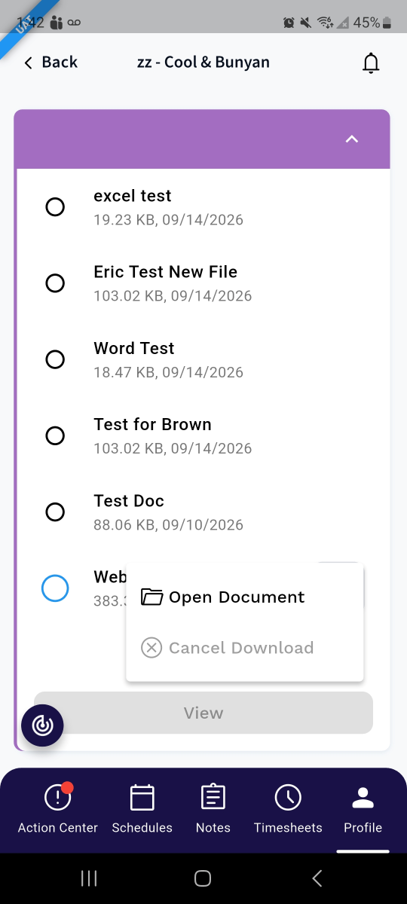
Once a document has been successfully downloaded, users can select the ellipsis menu displayed next to the downloaded document to access additional options. The menu provides actions to Open Document or Cancel Download.
Selecting Open Document launches the downloaded document in a separate window, allowing users to review the document content within a window outside the mobile application.
Please Note: The Open Document option is only available after the document has been downloaded successfully. During the download process, users can monitor progress using the download indicator and must wait for the download to complete before opening the document.
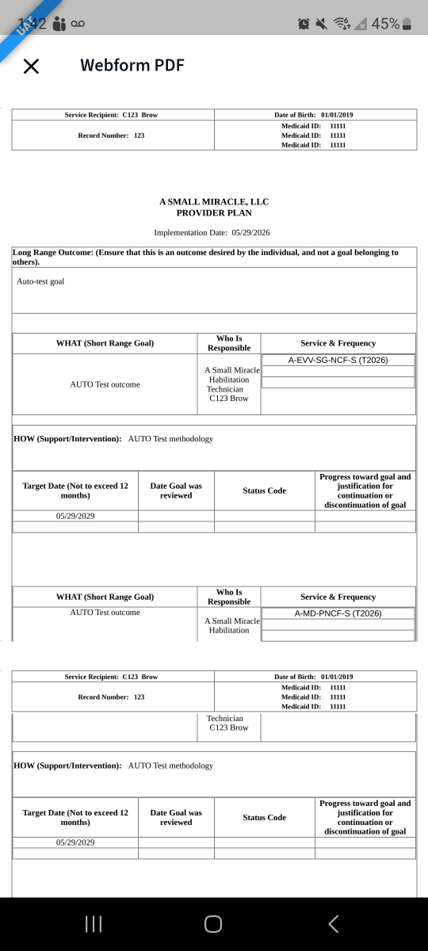
The downloaded document opens in a separate window on the user's device, allowing the document to be viewed while maintaining access to the OnTarget Mobile Application. This enables users to continue navigating the application, review client information, or perform other tasks without needing to close the document.
Please Note: Documents open using the device's supported document viewer or browser functionality. The document remains separate from the mobile application, allowing users to switch between the document and the application as needed.
Please Note: The Cancel Document option within the DMS document list page is ONLY available during download. This may be used to cancel the in-progress download.
DMS Document Download Options
Once a document download has been initiated, users are not required to remain logged in to the mobile application or stay on the document download page for the download to continue. Document downloads continue in the background, allowing users to close the application, navigate to other areas of the application, or return at a later time without interrupting the download process.
If a user logs out of the mobile application or closes the application before the download completes, a push notification is sent when the document download has finished successfully. Users can then return to the mobile application, navigate to the document list, and open the downloaded document when convenient.
Please Note: The download push notification will require the user to enable notifications for the OnTarget mobile application within the device settings.
Document Security:
To help protect sensitive information contained within Treatment Plan documentation, downloaded documents are managed using secure application storage practices.
- Downloaded DMS documents are not saved directly to the device's local storage. Instead, documents are securely stored within the mobile application's protected storage area, limiting access to authorized users and ensuring documents can only be accessed through the application.
- Downloaded documents remain available within the mobile application for up to 24 hours following a successful download.
- After the 24-hour retention period has elapsed, the downloaded document is automatically removed from application storage and must be downloaded again if additional access is required.
Please Note: These security measures are designed to protect confidential client information while still providing users with convenient access to Treatment Plan documentation from the mobile application.